Version History
Every generation, refinement, and edit creates a version snapshot. Compare changes and rollback to any point with one click.
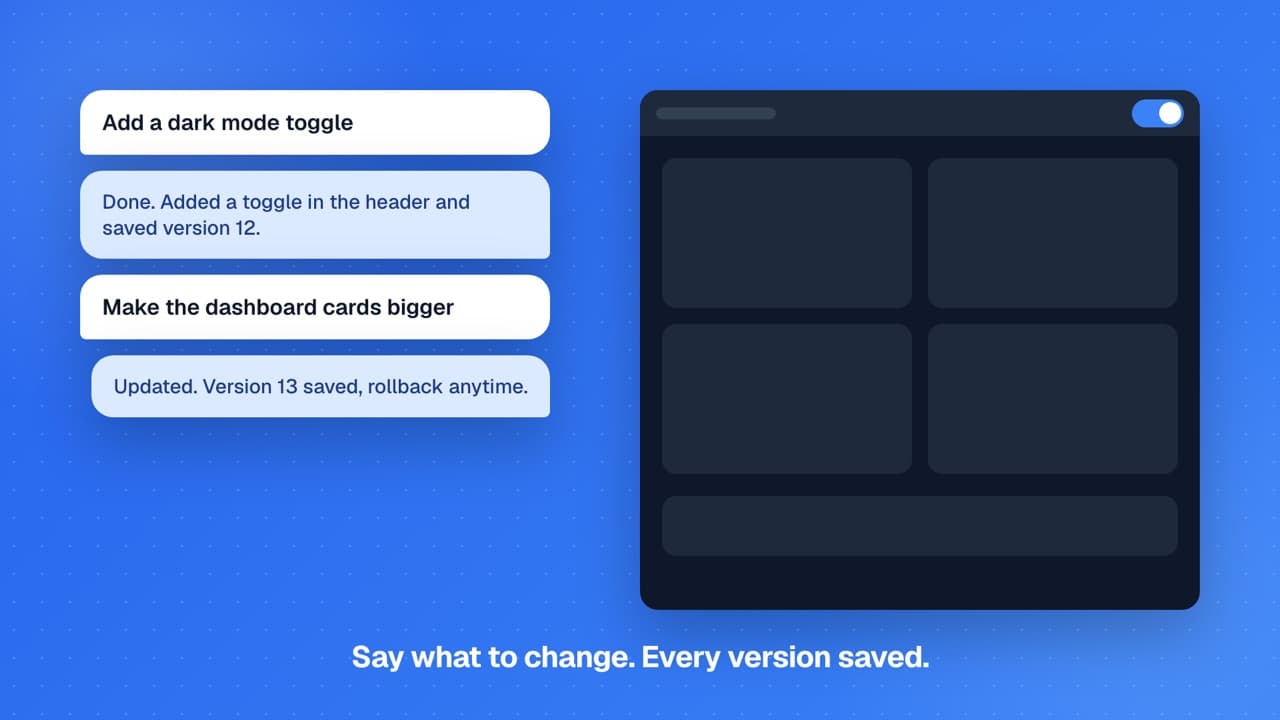
How Versions Work
Every time your app's code changes, GenMB automatically creates a version snapshot. This includes initial generation, chat refinements, visual edits, GenMB Code sessions, and plugin changes. Each version is a complete copy of your project at that point in time.
Automatic version creation
You never need to manually save a version. GenMB creates snapshots automatically after every code change, so you always have a complete history of your project's evolution.- ●Initial generation creates version 1 of your app.
- ●Each chat refinement creates a new version with the updated code.
- ●Visual Editor changes create a version after each edit session.
- ●GenMB Code sessions create a version when the AI reports its changes are done.
- ●Plugin configuration changes that trigger code updates also create new versions.
Viewing Versions
Access your version history from the Versions panel in the app editor sidebar. Each version shows when it was created and what triggered it, making it easy to find the exact point you want to return to.
Open the Versions panel
Browse the timeline
Preview a version
Compare changes
Rolling Back
Restore any previous version with one click. Rolling back does not delete the versions that came after, it creates a new version that contains the old code, keeping your entire timeline intact.
Select a version
Click the rollback button
Continue working
You can even rollback a rollback - since every restore creates a new version, nothing is ever permanently lost.
Safe experimentation
Experiment boldly with your app. If a refinement goes wrong, rollback takes one click and you never lose your previous work. Version history makes every change reversible.Version Limits
Versions are stored in Firestore and are available for the lifetime of your app. There are no version count limits on any plan, you can accumulate as many versions as you need.
- ●All plans (Free, Pro, Business) have unlimited version history.
- ●Versions are stored efficiently - only the files that changed are duplicated, not the entire project.
- ●Deleting an app removes all associated versions permanently.
- ●Version data is stored securely and is only accessible to the app owner and collaborators.
Tips
Use version history to experiment freely and recover from mistakes.
Note your checkpoints
Before making a large change (e.g., redesigning the layout), note the current version number so you can easily find it later if you need to rollback.Learn from the AI
Use version history as a learning tool - compare versions to see how the AI modified your code. This helps you understand patterns and techniques.Iterate with confidence
If you are iterating quickly, check the version list periodically to make sure you have a known-good checkpoint. This makes it easy to backtrack if needed.FAQs
Is there a limit on how many versions I can have?▾
Does rolling back delete newer versions?▾
Can I compare two versions side by side?▾
What triggers a new version?▾
Ready to build?
Create your first app for free, no credit card required.