Automation Workflows
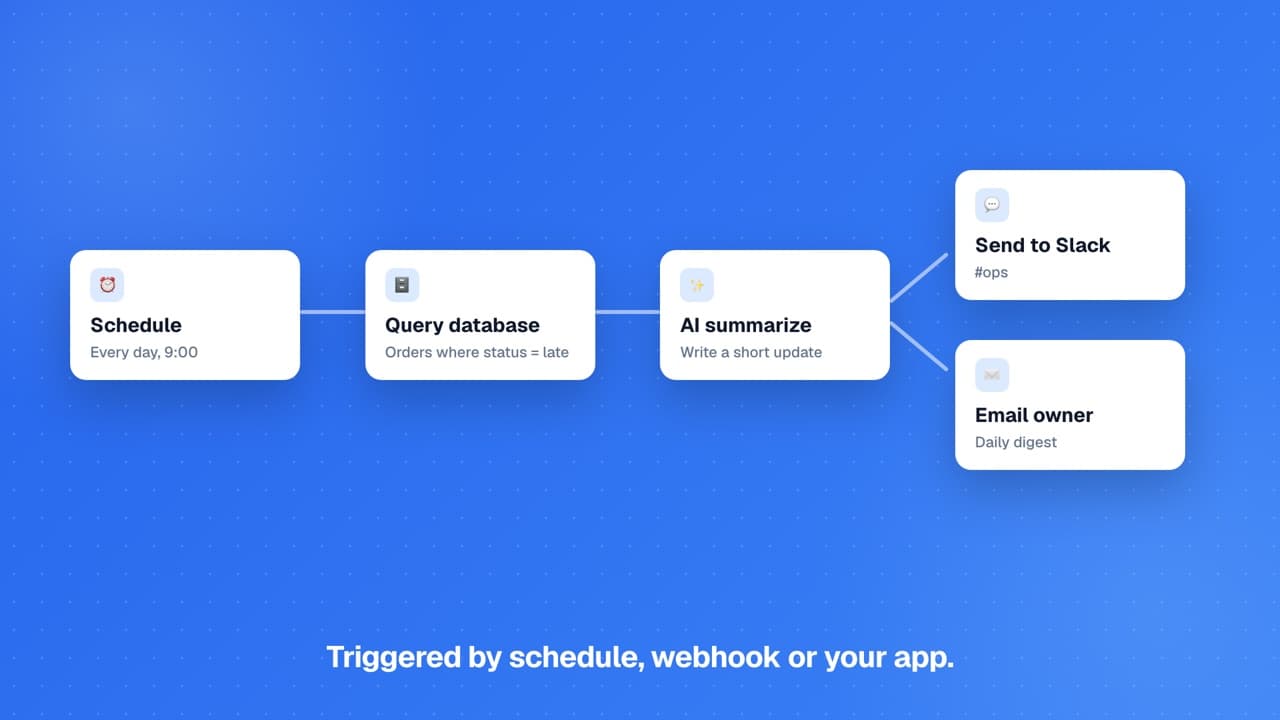
Build visual automation workflows that connect triggers, actions, and AI processing, no backend code required.
Build and test-run workflows on any plan: up to 3 on Free, or up to 10 on Pro, Team, and Business. Free keeps one workflow on autopilot (scheduled or webhook triggers); more need Pro or higher. Some integration nodes (like the Chat Agent node) require a paid plan.
Creating a Workflow
Building a workflow in GenMB is a visual, step-by-step process. Connect nodes on a canvas to create automated backend logic without writing code.
Open the Workflow Builder
Choose a trigger
Add and connect nodes
Configure each node
Test and activate
Node Types Reference
GenMB workflows currently support 19 node types plus Start and End anchors. They span core automation, logic, messaging, data integrations, and agent orchestration.
Core: HTTP Request, AI Generate, Delay, and Transform cover API calls, AI text generation, wait steps, and data reshaping.
Logic: Condition, Switch, Loop, Code, and Sub-Workflow let you branch execution, route on a value, iterate arrays, run advanced Python snippets, and call other workflows.
Messaging: Send Email, Gmail Send, Slack Message, and Discord handle outbound notifications across built-in and connected channels.
Data: DB Query, Google Sheets, Airtable, and Notion let you read or write across your data sources and connected tools.
Agent Integration: Trigger Agent and Chat Agent nodes let workflows hand work off to Scheduled Agents and chat agents as part of a larger automation graph.
Triggers and Scheduling
Every workflow starts with a trigger. Choose between webhook triggers for real-time events or schedule triggers for recurring automation.
Webhook triggers generate a unique URL for your workflow. Send HTTP requests to this URL from any external service, form, or API to start execution.
Schedule triggers run your workflow at fixed intervals, every minute, hour, day, or week. Configure the schedule using a simple frequency selector. Manual triggers let you run workflows on-demand from the GenMB interface, which is great for testing or one-off automations.
Each trigger passes data to the first node. Webhook triggers pass the request body; schedule triggers pass the current timestamp and run metadata.
Node Configuration
Each node type has its own configuration panel. Understanding the key settings helps you build reliable workflows.
Variable interpolation
Use double curly braces to reference data from previous nodes. For example,{{trigger.body.email}} accesses the email field from the webhook payload. {{node_1.output.status}} accesses the output of node 1.Error handling with conditionals
Add a conditional node after HTTP Request nodes to check for error responses before proceeding. This prevents cascading failures when an external API returns an error.Execution and resource limits
Each workflow execution has a 300-second total budget and a 60-second per-node timeout. Loop nodes are capped at 1,000 iterations and sub-workflow nesting is limited to depth 3. Database query nodes return at most 500 rows per call. Each user can have up to 3 workflows on Free, or up to 10 on Pro, Team, and Business. Workflows that exceed any limit are terminated and the run is marked failed in execution history.Execution History
Every workflow execution is logged with detailed information about each node. Use the history to debug issues, monitor performance, and verify your automations are working correctly.
View the status of every execution: success, failure, or in-progress. Click any execution to see the full trace. Inspect individual node results including input data, output data, execution time, and any errors that occurred.
Filter executions by status, date range, or trigger type to find specific runs quickly. Failed executions show detailed error messages and the exact node where the failure occurred, making debugging straightforward.
Best Practices
Follow these tips to build reliable, maintainable automation workflows.
Build incrementally
Start simple: build and test one node at a time before adding complexity. Verify each step works before connecting the next. This makes debugging much easier.Use descriptive names for your workflows and nodes. When you have multiple workflows, clear naming makes management easier. Test with sample data before activating: use the test button to simulate real executions without affecting production data.
FAQs
What are automation workflows?▾
How do I trigger a workflow?▾
Can workflows call external APIs?▾
Can I use AI in my workflows?▾
How do I debug a failed workflow?▾
Ready to build?
Create your first app for free, no credit card required.